Guides
Sync Apple Calendar with Google Calendar
Plenty of people keep personal life in Apple Calendar and work in Google Calendar. Neither one can see the other, so a Saturday commitment on your iPhone does nothing to stop a colleague booking you at the same time.
Don't Double Book Me connects your iCloud calendar to your Google Calendar and mirrors your busy time between them. Book time on one and the other shows you as busy. Your titles, guests, and notes stay where you put them.
Why Apple Calendar and Google Calendar Don't Talk to Each Other
You can subscribe to an iCloud calendar from Google, but a subscription is read-only and refreshes on Google's own schedule, which can run hours behind. It also copies your event titles across, which is the opposite of what most people want when the two calendars belong to different parts of their life.
Syncing is different. Busy time is mirrored in both directions on your terms, and by default the copy says Busy and nothing else.
Connect Apple Calendar and Google Calendar
Setup takes about two minutes. Apple does not offer a Sign in with Apple flow for calendar access, so you create your account with Google and add iCloud to it.
-
Start your account with Google.
You will be asked for read and write access to your Google Calendar, which is what lets us mirror busy time onto it.
Start with Google -
Create an Apple app-specific password.
Sign in at account.apple.com, open Sign-In and Security, choose App-Specific Passwords, and generate one named Don't Double Book Me. Apple only offers app-specific passwords on accounts with two-factor authentication turned on. This password gives us your calendars and nothing else, and you can delete it at any time to cut off access.
-
Add iCloud on your calendars page.
Choose iCloud, enter your Apple Account email and the app-specific password you just made, and your iCloud calendars are imported.
-
Create the sync.
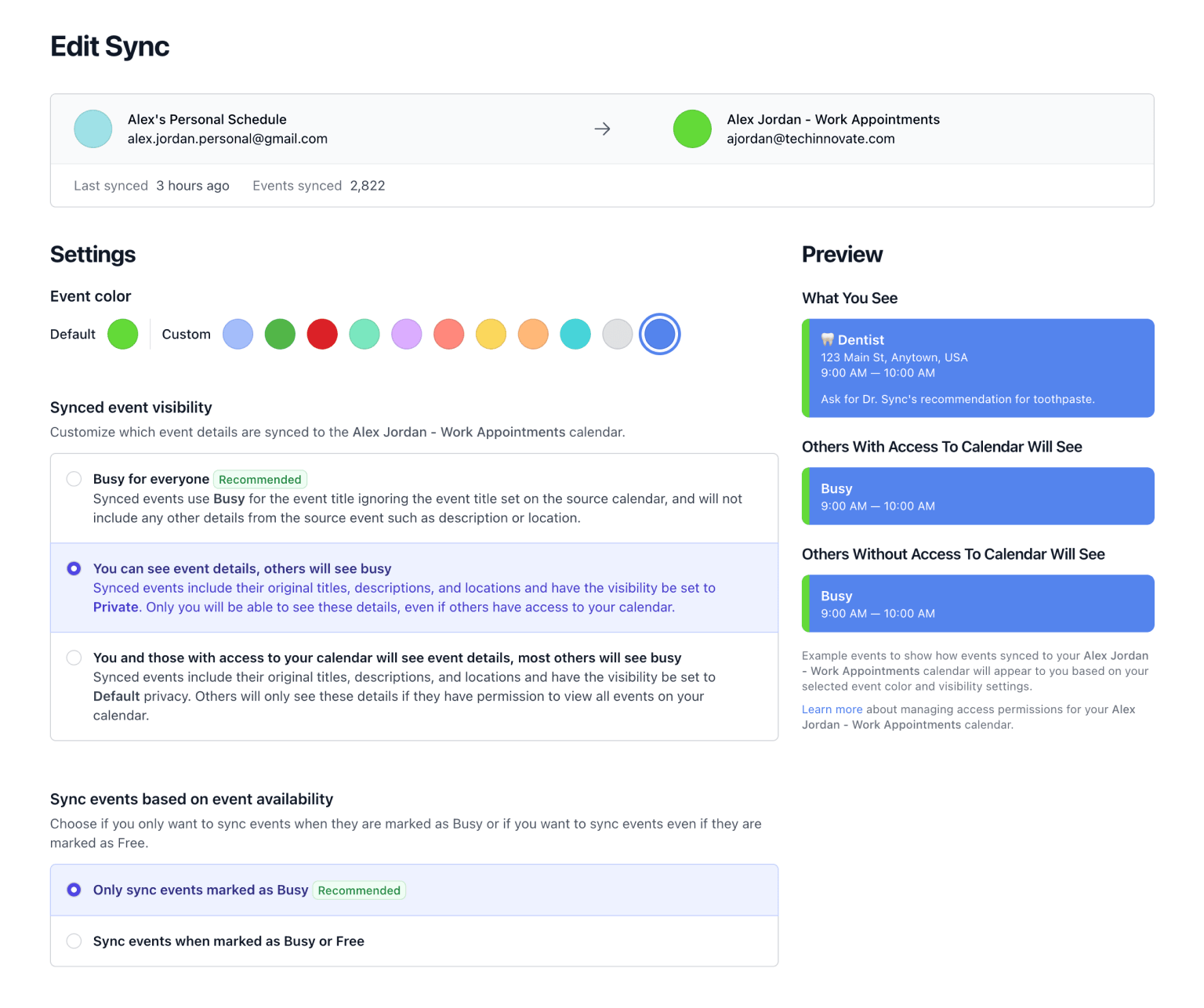
Pick your iCloud calendar and your Google Calendar, then choose one direction or both. Set event visibility, working hours, buffers, and rounded times while you are there.
-
You're done. 🎉
Google updates push to us the moment something changes. iCloud has no way to notify us, so we check it every 10 minutes, and a Sync Now button is there when you need a change to carry over right away.
Free for a week with no credit card, then $20 a year for as many syncs and calendars as you want.
What You Get
- Busy, Not Details. Mirrored events say Busy by default. Nobody on the other calendar learns where you are or who you are with. You can pass the real title through if you'd rather, or write your own with placeholders.
- One Direction or Both. Mirror iCloud onto Google, Google onto iCloud, or both at once. Mirrored copies are marked so they never echo back.
- Working Hours. Keep weekend and evening commitments off your work calendar by syncing only the hours you choose.
- Every Calendar in the Account. iCloud accounts usually hold several calendars. Add as many as you want to a single sync so they all block each other.
-
⚽ Soccer Practice
9:00 AM — 10:00 AM
-
Busy
9:00 AM — 10:00 AM
Related Resources
A better way to manage your Google, Microsoft Outlook, Apple, and Fastmail calendars.
Don't Double Book Me is designed for those who need to maintain a clear and coordinated schedule without the hassle of double bookings.