Guides
Prevent Double Bookings Across All Your Calendars
Double bookings happen when two or more events overlap on your schedule. If you manage multiple calendars — a personal Google Calendar and a work Outlook calendar, for example — it's easy for conflicts to slip through because neither calendar knows about the other.
Why Double Bookings Happen
The root cause is simple: your calendars are siloed. Google Calendar and Microsoft Outlook don't share availability data with each other. When a colleague checks your Outlook calendar to schedule a meeting, they have no way of knowing you already have a dentist appointment on Google Calendar at the same time.
Manual workarounds — copying events between calendars, sharing links, or maintaining a mental list of commitments — are unreliable. They break down the moment you forget to update one calendar, and they don't scale when your schedule gets busy.
Strategies to Prevent Double Bookings
1. Sync Your Calendars Automatically
The most reliable way to prevent double bookings is to sync your calendars so that busy times are reflected across all of them. When an event is added to one calendar, a corresponding "Busy" block appears on the others within seconds.
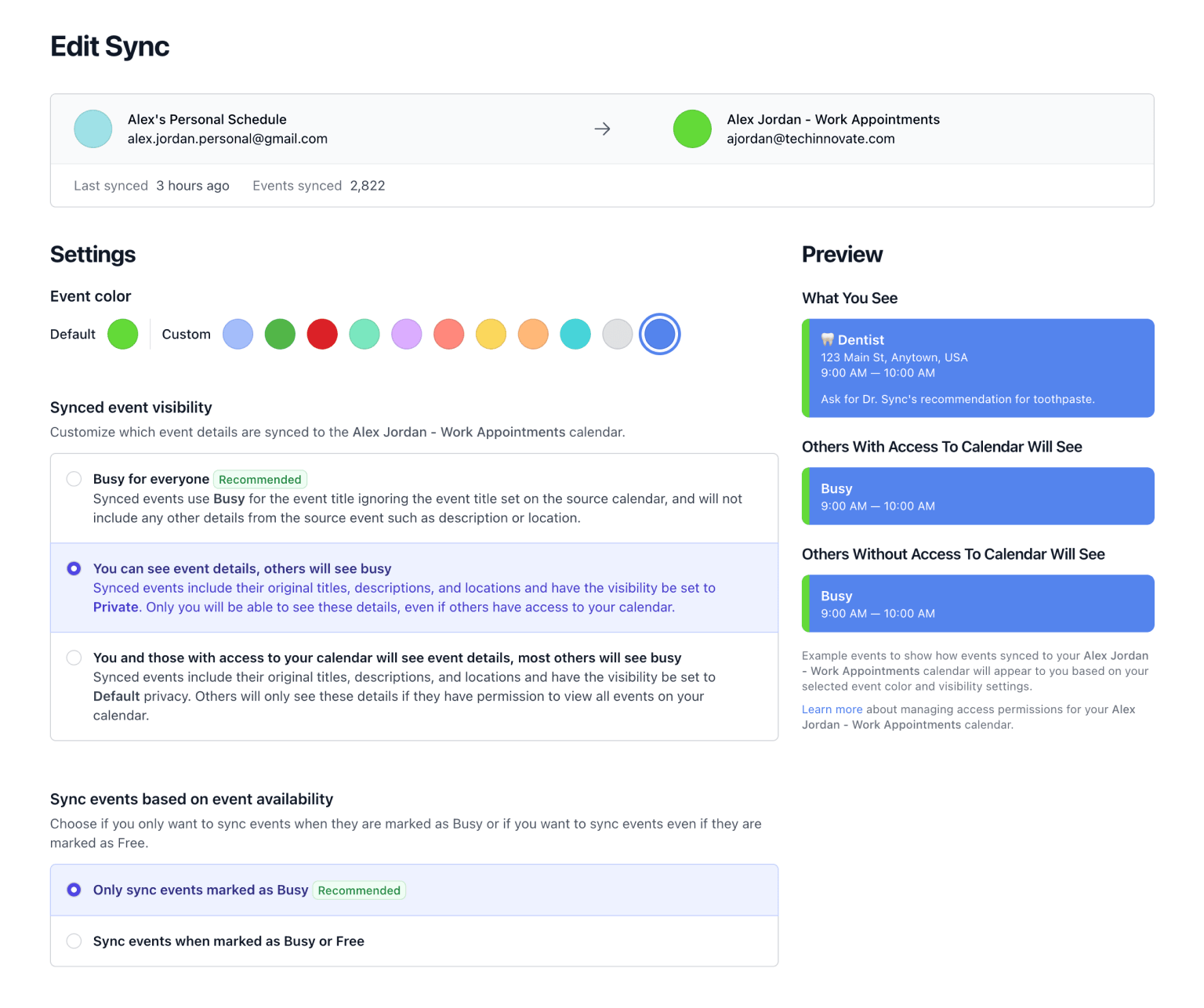
Don't Double Book Me does exactly this. It connects your Google Calendar and Microsoft Outlook accounts and syncs events in real-time via webhooks. You choose how much detail to share — colleagues see "Busy" without seeing the specifics of your personal appointments.
2. Set Clear Working Hours
Define the hours during which you're available for meetings. Events outside your working hours won't be synced to your work calendar, keeping your personal time protected. Don't Double Book Me lets you configure working hours per day of the week, so your Monday availability can differ from your Friday.
3. Use Privacy Controls
Syncing doesn't mean sharing everything. With privacy controls, you decide what your synced events look like on the other calendar. Options include showing events as "Busy" with no title, keeping the original visibility, or marking them as "Private." This way, your work calendar shows you're unavailable without revealing that you have a therapy appointment.
4. Add Buffer Time Between Events
Back-to-back meetings leave no room for transitions. Rounded event times in Don't Double Book Me automatically extend events to the nearest 15 or 30 minutes, creating natural buffers. A 25-minute meeting becomes a 30-minute block, giving you a few minutes to prepare for what's next.
Get Started with Don't Double Book Me
Don't Double Book Me syncs your Google Calendar and Microsoft Outlook calendars in real-time so you never have to worry about double bookings again. Connect your accounts, pick the calendars you want to sync, and you're done.
Start with a 1-week free trial (no credit card required), then keep your calendars in sync for just $20/year — a fraction of what other tools charge monthly.
Related Resources
A better way to manage your Google, Microsoft Outlook, Apple, and Fastmail calendars.
Don't Double Book Me is designed for those who need to maintain a clear and coordinated schedule without the hassle of double bookings.